Built-in teleprompter with adjustable scroll speed and opacity. Record your screen or whiteboard while reading your script — the teleprompter is never captured in your video.
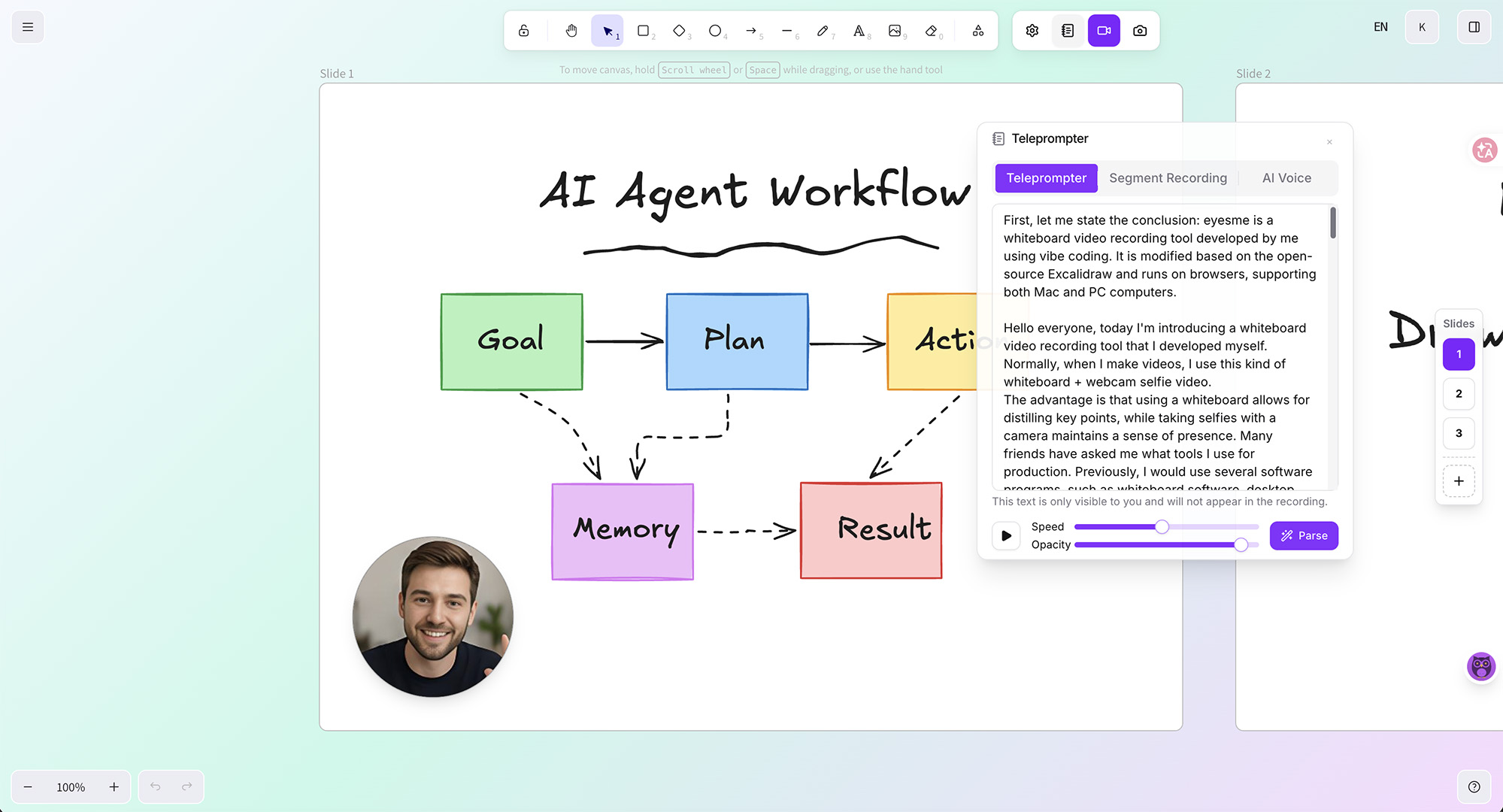
Write your narration script and load it into the built-in teleprompter
Adjust scroll speed and display opacity to your comfort level
Use arrow keys to switch between slides — press spacebar to start or stop each segment recording
The teleprompter stays invisible in your final video — export a clean MP4 when done
Control how fast the script scrolls and how transparent the teleprompter overlay appears. Find the perfect reading pace and visual balance for your recording session.
The teleprompter is only visible to you during recording. It is never captured in the exported video — your viewers see a clean, professional output.
Switch slides with arrow keys and start or stop each recording segment with the spacebar. Keep your hands on the keyboard and your eyes on the script.
Record one segment per slide using the spacebar. Preview each segment individually, re-record if needed, then merge everything into a complete video.
Read your script naturally while recording without memorizing lines. The adjustable scroll speed lets you match your speaking pace perfectly.
Navigate slides with arrow keys and record segment by segment with the spacebar. The teleprompter keeps you on track across every slide transition.
Achieve polished, error-free narration in fewer takes. The invisible teleprompter ensures clean output while giving you the confidence to speak fluently.
No. The teleprompter is only visible on your screen during recording. It is never captured or included in the exported MP4 video.
Yes. You can set the scroll speed to match your natural speaking pace. Adjust it at any time during the recording session.
Yes. Control the transparency of the teleprompter overlay so you can see both your script and the canvas underneath.
Use the spacebar to start and stop each recording segment. Use arrow keys to switch between slides. Preview each segment before moving to the next.
Yes. All teleprompter, recording, drawing, AI subtitle, and AI voiceover features are completely free. The only paid option is a one-time $20 payment to remove the watermark from exported videos.
Record whiteboard videos with webcam, voice, and AI subtitles
Auto-generate synced subtitles with AI speech recognition
Text-to-speech AI voiceover for video presentations
AI-powered translation for canvas content and video subtitles
No downloads, no sign-up. Open your browser and start drawing, recording, and sharing.
Launch Eyesme Canvas